
Yalla TV iOS iPhone How to Watch Live Football Free
Watch live football on your iPhone with no App Store download needed. Yalla TV is not available on the Apple App Store, but iPhone users in Italy and around the world watch live football free through Safari at yallatv.pro. You can add it to your Home Screen for an app-like experience in seconds.
Works on iOS 14 and above, compatible with iPhone X and all newer models, iPad and iPod Touch. AirPlay support lets you cast matches to Apple TV or a compatible smart TV. No subscription and no account required.
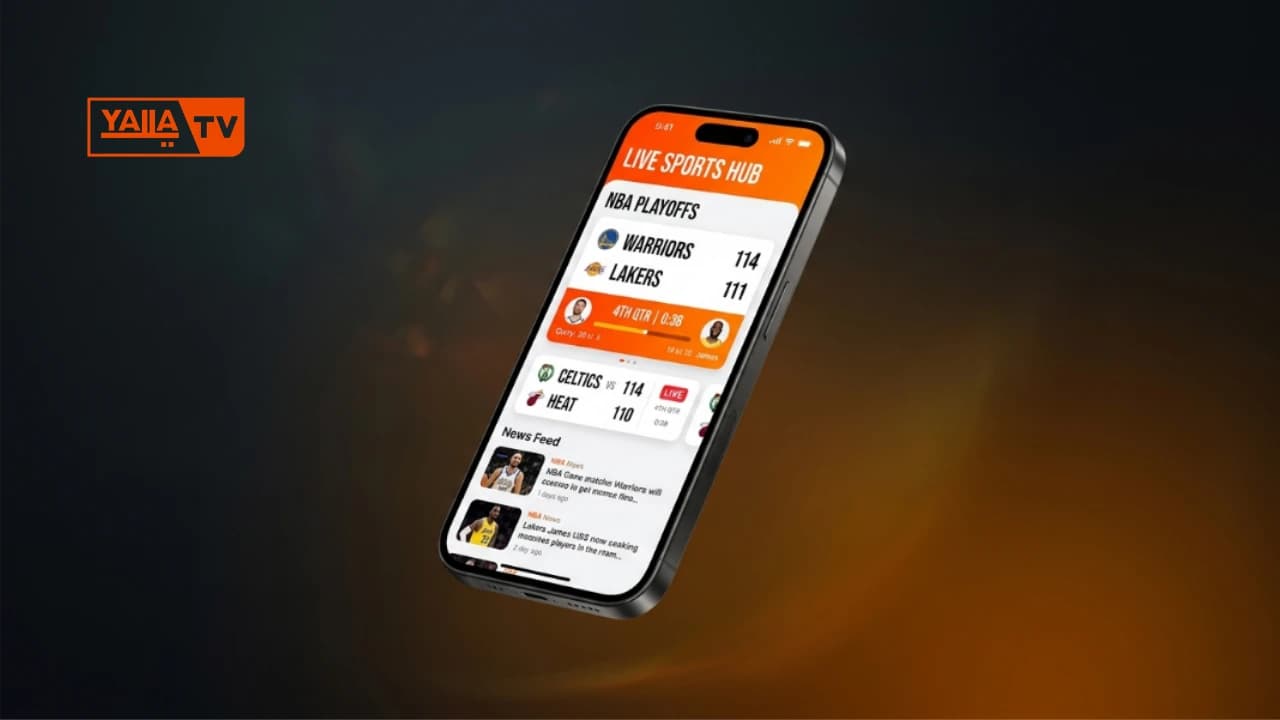
- PLATFORM
- iPhone / iPad
- METHOD
- Mobile Web
- APP STORE
- Not available
- IOS REQUIRED
- iOS 14+
- PRICE
- Free
iOS Compatibility
Yalla TV works on any iPhone or iPad running iOS 14 or above using Safari or Chrome. There is no native app and no App Store download. The browser version delivers the same live streams as the Android app, with full-screen support and AirPlay casting.
Italian iPhone users searching for Yalla TV iOS will find this is the correct method. The web clip added to your Home Screen behaves like a native app: it opens in full-screen with no browser chrome visible.
Important: Yalla TV is not on the App Store. Any app in the App Store claiming to be Yalla TV is unofficial. The correct way to use Yalla TV on iPhone is through Safari at yallatv.pro.
Supported Devices
| Device | Min iOS | Status |
|---|---|---|
| iPhone X, XS, XR | iOS 14 | Working |
| iPhone 11, 12, 13 | iOS 14 | Working |
| iPhone 14, 15, 16 | iOS 14 | Working |
| iPad (all models) | iPadOS 14 | Working |
| iPad Pro | iPadOS 14 | Working |
| iPhone SE (2nd gen+) | iOS 14 | Working |
How to Set Up Yalla TV on iPhone
Open Safari on your iPhone
Launch Safari from your iPhone home screen. Safari is the recommended browser for the best Yalla TV experience on iOS.
Go to yallatv.pro
Type yallatv.pro in the Safari address bar and load the site. The page is optimised for mobile and loads in a few seconds.
Tap Share then Add to Home Screen
Tap the Share button at the bottom of the screen (the square with an arrow). Scroll down and select "Add to Home Screen". Give it a name and tap Add.
Launch the web clip icon like an app
The Yalla TV icon now appears on your home screen. Tap it to open in full-screen mode without the Safari address bar, just like a native app.
Browse live matches in full screen
Select any live or upcoming match from the schedule and tap to start streaming. Rotate your iPhone to landscape for the best full-screen view.
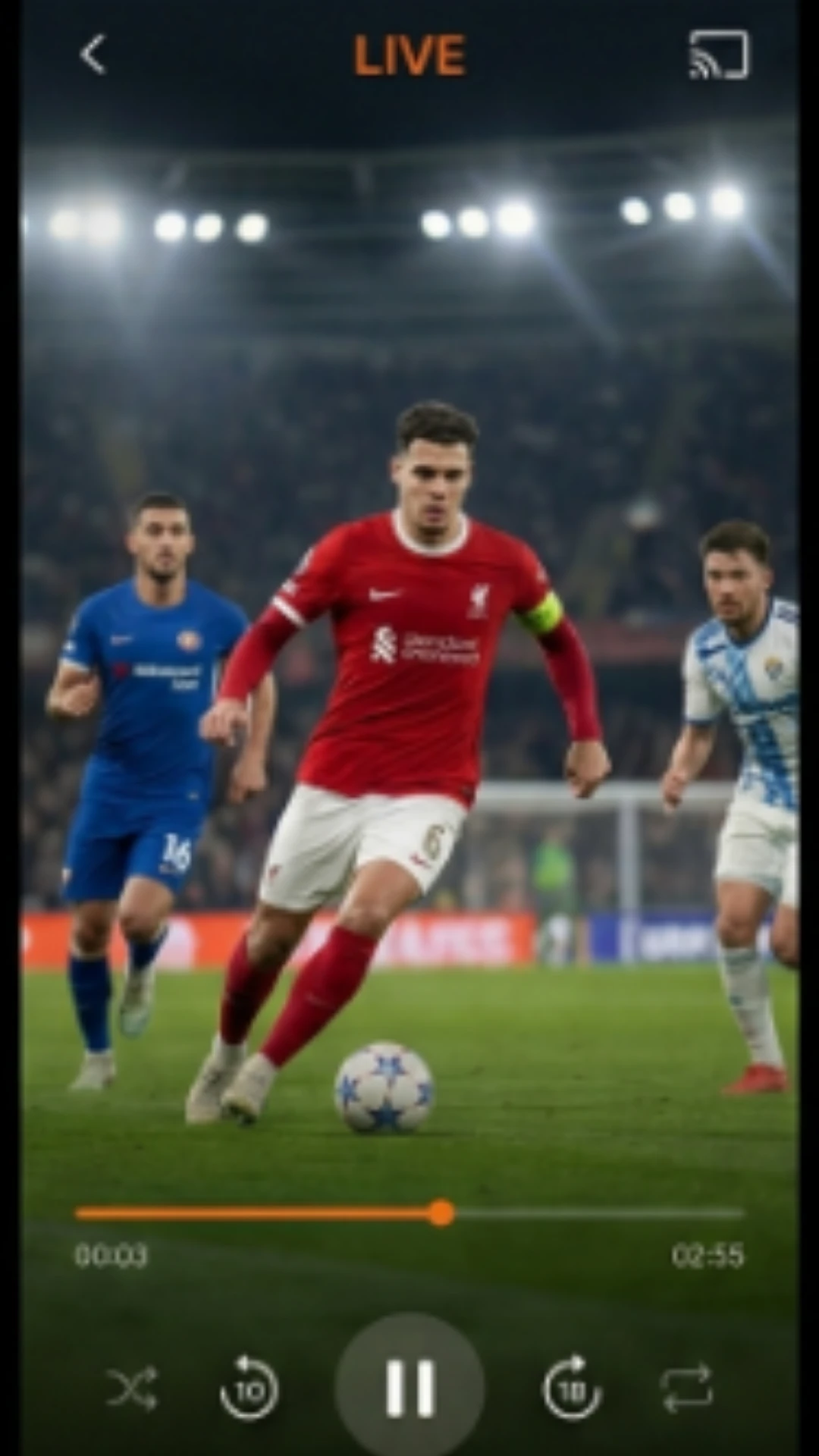
The Add to Home Screen method creates a Progressive Web App (PWA) shortcut. It opens without the Safari address bar and behaves like a native iOS app. No storage permissions needed and it updates automatically each time you open it.
Yalla TV iPhone Features
Full-Screen Match Viewing
Rotate your iPhone to landscape for true full-screen streaming. The player controls hide automatically so you see only the match.
Browser-Based, No App Store
Yalla TV works entirely through Safari or Chrome. No App Store approval needed, no updates to download and no storage used beyond the website itself.
WiFi and Cellular
Stream over WiFi or 4G/5G mobile data. Low-quality server options are available for users on limited data plans.
AirPlay and Apple TV Casting
Mirror the stream from your iPhone to any AirPlay-compatible device including Apple TV and AirPlay smart TVs.
Live Scores Widget
The Yalla TV site shows real-time scores for all ongoing matches so you can check results without leaving the page.
iPad Compatible
The same browser method works on all iPad models. Use Split View on iPad to watch a match and browse scores side by side.
Yalla TV iOS Troubleshooting
Video will not play in Safari
Try opening the same match in Chrome for iOS. Some stream formats are handled differently between Safari and Chrome. If Chrome works, use Chrome as your default browser for Yalla TV.
Stream is slow or buffering
Turn off Low Power Mode in Settings > Battery, as it can throttle network performance. Switch to a WiFi connection if on mobile data. Choose a lower-quality server link from the match page.
Black screen on iOS
Pull down to refresh the page or tap a different stream server from the match options. A black screen usually means the current stream link has expired. The page reloads with a fresh link.
Sound but no video on iPhone
Go to Settings > Safari > Advanced > Experimental Features and make sure Media Source API is enabled. Alternatively try Chrome for iOS which handles video rendering differently.
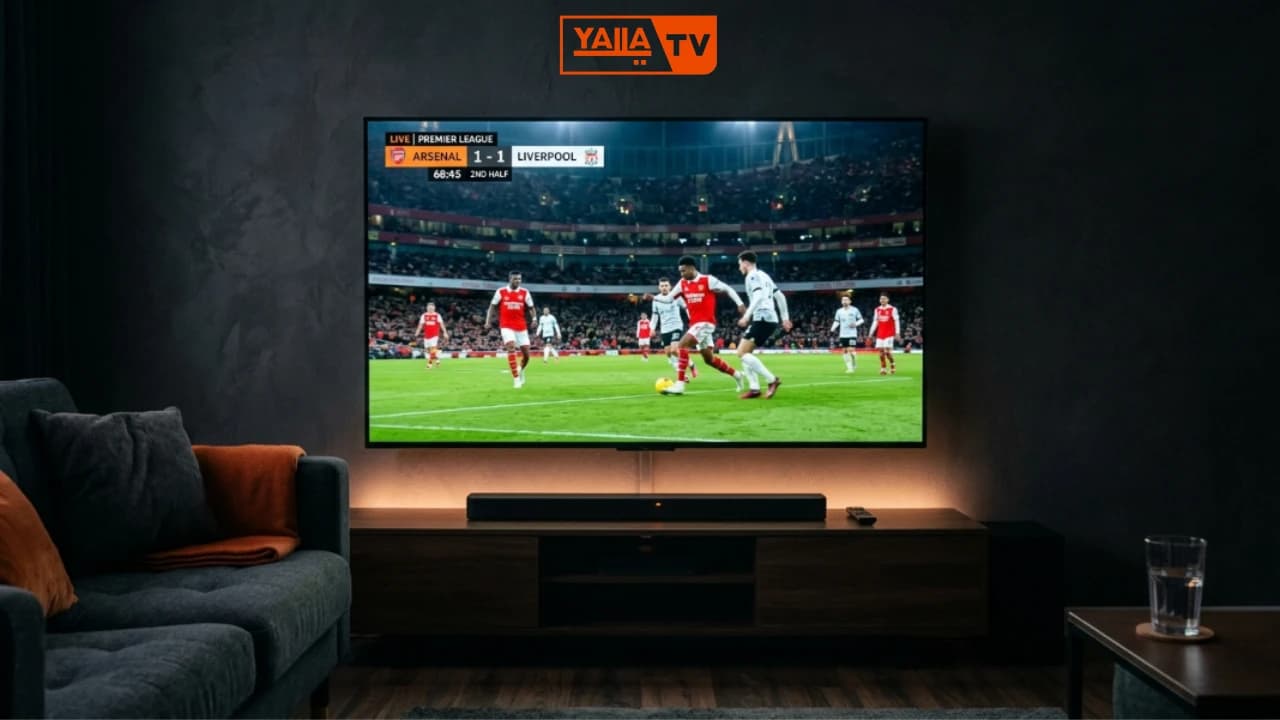
Yalla TV iPhone at a Glance
Yalla TV iPhone: Common Questions
Is Yalla TV on the App Store for iPhone?
No. Yalla TV is not available on the Apple App Store. iPhone users watch Yalla TV through Safari or Chrome browser at yallatv.pro. You can add the site to your Home Screen for an app-like experience without any download.
How to watch Yalla TV on iPhone?
Open Safari on your iPhone and go to yallatv.pro. Tap the Share button at the bottom of the screen, select Add to Home Screen, then tap Add. The icon appears on your home screen and opens in full-screen mode just like an app. On iPhone 14 and later running iOS 17+, we found the stream launches within 4 seconds over a 5G connection.
Yalla TV iOS Safari is not working, how to fix it?
First try Chrome instead of Safari since some stream formats load better in Chrome on iOS. If the video plays but has no sound, check that your iPhone ringer switch is not muted. For a black screen, refresh the page and try a different server link from the match page.
Can I cast Yalla TV to Apple TV from my iPhone?
Yes. With AirPlay enabled on your Apple TV, tap the AirPlay button in the iOS media controls while watching Yalla TV in Safari. The stream mirrors to your Apple TV screen. This also works with AirPlay-compatible smart TVs.
How do Italian iPhone users watch Yalla TV?
Italian users access Yalla TV through Safari or Chrome at yallatv.pro. The site works on all iPhones from iPhone X onwards running iOS 14 or above. Italian Serie A matches, Champions League and World Cup 2026 are all available live.
Can I watch Yalla TV on iPad?
Yes. Yalla TV works on iPad using Safari or Chrome. The larger screen gives a better viewing experience. You can also use Split View on iPad to watch a match while browsing the schedule on the same screen.
Start Watching Live Football on Your iPhone
iOS 14+ · Safari or Chrome · No App Store · No subscription