
Yalla TV HD How to Watch in HD Quality Free
Yalla TV HD streams are free and available on every device. To watch in HD, select a stream link labeled HD or beIN Sport HD from the channel list. You need a minimum of 5 Mbps for 720p HD and 10 Mbps for 1080p full HD. HD streams are marked with an HD badge: always select these over unlabeled links.
Watch HD streams on Yalla TV: settings, speed requirements and tips for Android, iPhone, PC and Smart TV. If HD is buffering, switching to a different server fixes the problem in most cases.
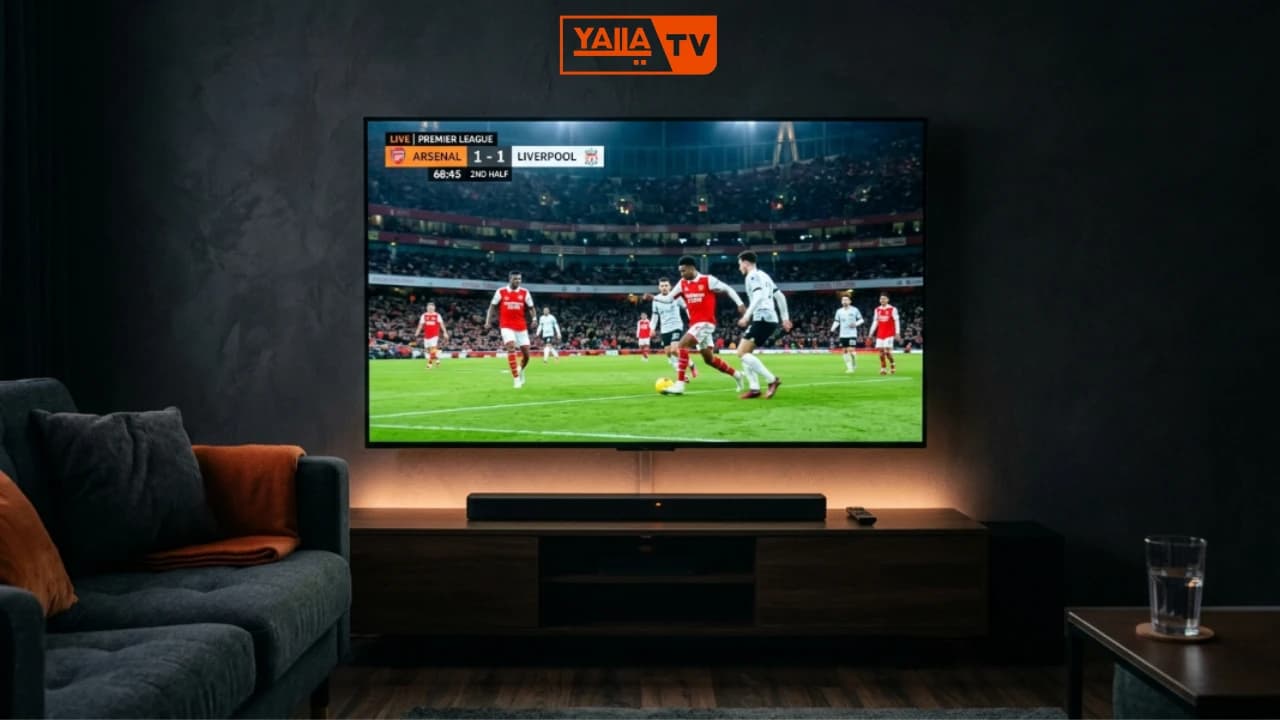
Yalla TV HD Requirements
Four things determine whether you get HD quality on Yalla TV. Check each one before troubleshooting a stream.
Internet Speed
CriticalMinimum 5 Mbps for 720p HD. 10 Mbps for 1080p full HD. 25 Mbps for 4K. Test your speed at speedtest.net before assuming the stream is the problem.
Device
Any Modern DeviceAny Android phone released after 2018, iPhone 8 or later, modern PC or laptop, Smart TV with HDMI 2.0 or later. Older devices may struggle to decode 1080p streams smoothly.
Browser or App
Latest VersionUse the latest Yalla TV APK on Android. On PC, use Google Chrome or Firefox updated to the current version. Outdated browsers can drop HD streams to SD automatically.
Stream Server
Select HD LinkNot all stream links on Yalla TV are HD. You must actively select a link labeled HD, 1080p or beIN Sport HD. SD links will play in standard definition regardless of your connection speed.
How to Get HD Streams on Yalla TV
Follow these steps to identify and select HD quality streams on Yalla TV every time you watch a match.
- 1
Open the Yalla TV channel list
Launch the Yalla TV app or open yallatv.pro. Navigate to Live TV or the channels list.
- 2
Look for the HD badge
HD streams are marked with an 'HD' or '1080p' badge next to the channel or stream link name. beIN Sport HD channels are consistently available in HD.
- 3
Select an HD stream server
Tap the HD stream link to start playback. If the player shows the stream quality, confirm it is set to HD or Auto (HD).
- 4
Switch server if buffering
If the HD stream buffers, tap the server selector icon inside the player. Choose Server 2 HD or Server 3 HD. Yalla TV provides multiple HD server options per match.
- 5
Test your connection speed
If HD still does not load, test your internet speed at speedtest.net. You need at least 5 Mbps for HD. If below this threshold, connect to Wi-Fi or switch to an SD stream.
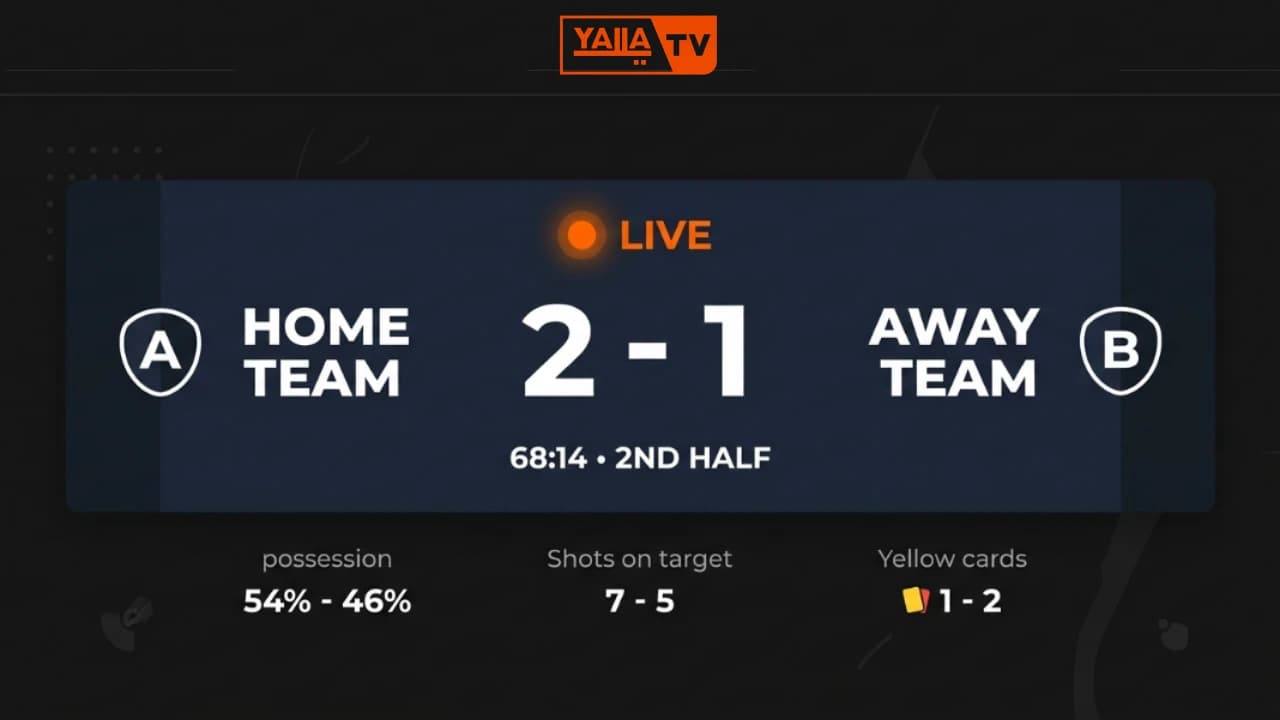
HD streams on Yalla TV are marked with an HD badge. If a stream is buffering in HD, switch to a different server link: Yalla TV always provides multiple sources.
Yalla TV HD by Device
HD settings and tips differ slightly by device. Find your device below for the specific steps to get the best HD quality.
Android HD
- 1
Open Settings in the Yalla TV app and set Video Quality to Auto or HD.
- 2
Connect to Wi-Fi instead of mobile data for stable HD streams.
- 3
If HD drops to SD mid-stream, clear the app cache and reopen the stream.
iPhone HD
- 1
Use Wi-Fi rather than cellular data to maintain HD quality throughout a match.
- 2
In Safari settings, disable Low Data Mode to prevent automatic quality reduction.
- 3
If HD is not loading, try the stream in Chrome instead of Safari.
PC HD
- 1
Use Google Chrome for the best HD stream compatibility on Yalla TV.
- 2
Disable browser extensions including ad-blockers before opening an HD stream.
- 3
Press F11 for fullscreen to get the full HD viewing experience on any monitor.
Smart TV HD
- 1
Connect your Smart TV using a wired ethernet cable for the most stable HD connection.
- 2
Use the built-in browser on the TV to open yallatv.pro and select HD stream links.
- 3
For Android TV, install the Yalla TV APK via a USB drive or the Downloader app.
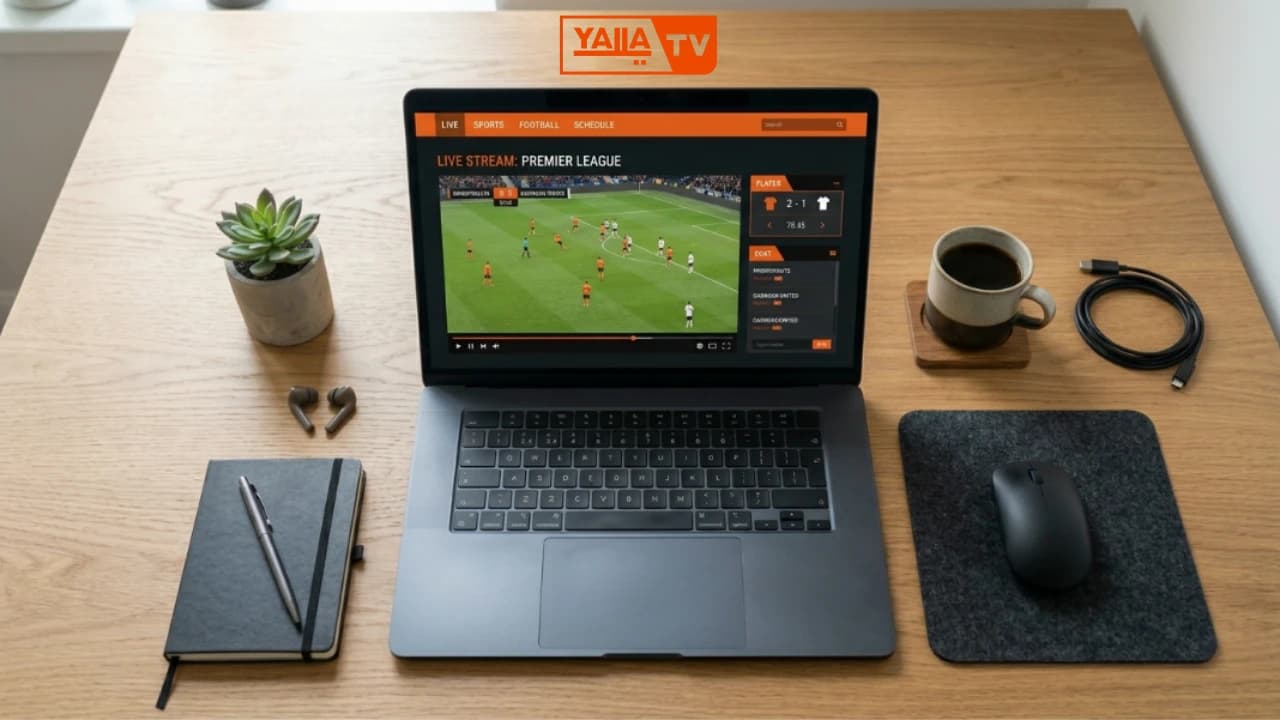
Fixing Common Yalla TV HD Problems
Most HD issues on Yalla TV have a straightforward fix. Use these six solutions to get back to sharp HD picture quickly.
HD Not Loading
Switch to a different HD server link. Yalla TV provides 3 to 5 server options per match. If all HD links fail, the match may not have an HD broadcast available from the source.
HD Buffering
Test your internet speed at speedtest.net. If below 5 Mbps, HD will buffer. Switch to Wi-Fi or lower quality to SD while your connection is slow. HD buffering is almost always a network issue.
HD Only on Some Matches
Not all matches are broadcast in HD. Lower-division league matches and regional competitions may only have SD streams available. This is determined by the original broadcaster, not by Yalla TV.
SD vs HD Quality
SD streams on Yalla TV run at 480p resolution. HD streams run at 720p or 1080p. The difference is significant on screens larger than 5 inches. Always select HD when your connection allows it.
Data Usage for HD
Yalla TV HD streams use approximately 2 GB of data per hour at 1080p. At 720p HD, expect around 1.5 GB per hour. Plan your data accordingly when watching on mobile data without an unlimited plan.
VPN Impact on HD Quality
A VPN adds routing overhead that can reduce effective bandwidth. If HD is buffering while a VPN is active, try disabling the VPN. If your ISP blocks Yalla TV, choose a VPN server in a nearby country for lower latency.
Yalla TV HD: Fast Facts
Yalla TV HD: Common Questions
How do I watch Yalla TV in HD?
To watch Yalla TV in HD, open the channel list and look for stream links labeled HD or 1080p. Select a stream with the HD badge. Make sure your internet connection is at least 5 Mbps for smooth HD playback. If one HD server is buffering, switch to a different HD server link.
Why is Yalla TV not showing in HD?
The most common reasons are: selecting an SD stream link instead of an HD one, internet speed below 5 Mbps, or the specific match not having an HD broadcast available. Always select the stream labeled HD or beIN Sport HD to get high definition quality.
Why is the Yalla TV HD link not working?
HD links can go offline during high-traffic matches. Switch to a different server by tapping the stream selector inside the app. Yalla TV always provides multiple server links per match: one HD link going down does not mean HD is unavailable, just try Server 2 HD or Server 3 HD.
What is the best internet speed for Yalla TV HD?
A minimum of 5 Mbps is required for 720p HD streams on Yalla TV. For 1080p full HD you need at least 8-10 Mbps. For the best experience with no buffering, a connection of 15 Mbps or above is recommended. Use Wi-Fi over mobile data whenever possible for stable HD.
Does Yalla TV support 4K streaming?
Yalla TV offers some streams at 4K quality on supported channels. You need a minimum of 25 Mbps for 4K and a 4K-capable device. Not all matches are broadcast in 4K: this depends on the original broadcast source, not Yalla TV itself.
Can I watch Yalla TV HD on mobile data?
Yes, but 4G/LTE is required for HD quality on mobile data. You need at least 5 Mbps on mobile data for HD streams. On 3G or congested networks, switch to SD quality to avoid buffering. Wi-Fi gives significantly more consistent HD performance than mobile data.
Start Watching Yalla TV in HD Quality
Free 1080p HD streams are available right now. Select an HD-labeled link and watch live football in 1080p on any device.