
Yalla TV Without Buffering Smooth HD Streams 2026
Get buffer-free Yalla TV streams every time with network, device and settings tips. Watching Yalla TV without buffering comes down to three things: a fast enough connection, the right device settings, and choosing the best server. This guide covers all three.
Most buffering issues on Yalla TV are caused by network congestion or an overloaded stream server, not the app itself. If the app keeps freezing after these fixes, check our not working guide. The fixes below work for Senegal, Italy, Indonesia and all other regions.
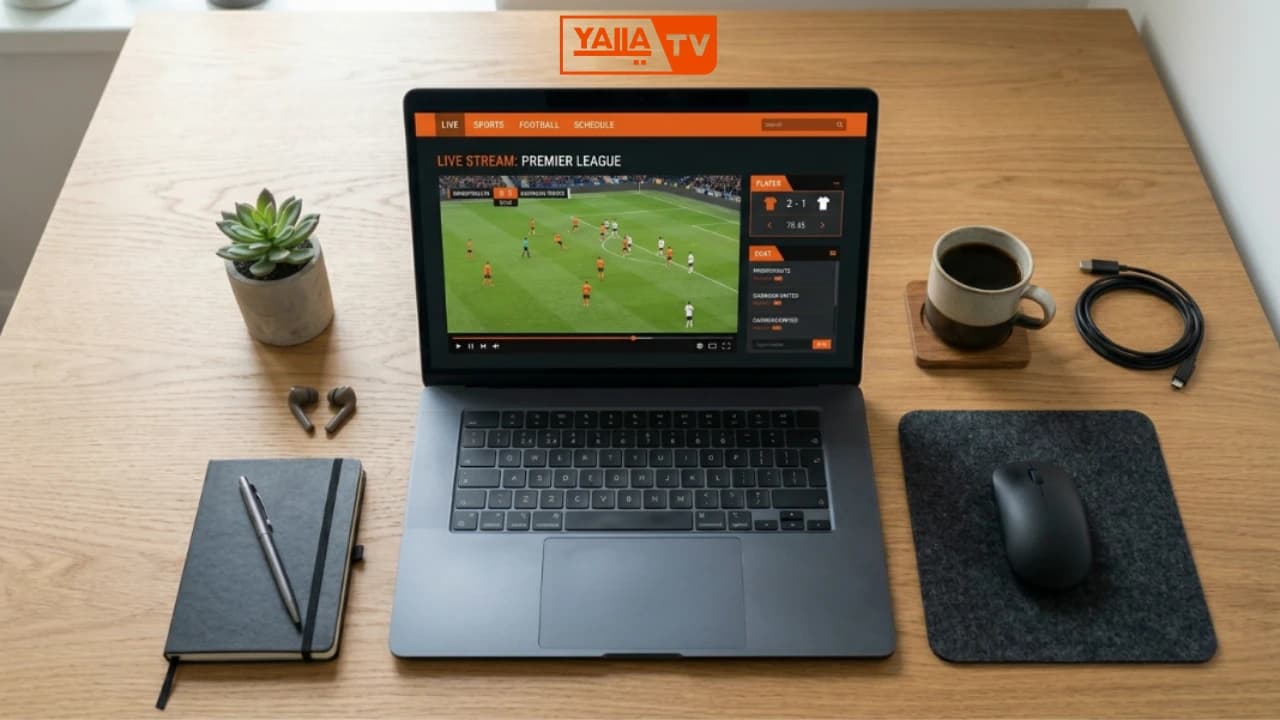
4 Pillars of Buffer-Free Yalla TV Streaming
These four factors determine whether you get a smooth live stream or constant pausing. Check each one before anything else.
Fast Internet
10+ Mbps for HD streams. Test your speed at fast.com before kick-off. Below 5 Mbps, drop to SD quality.
Right Device
Your device needs 2GB+ RAM to run Yalla TV smoothly. Close all other apps before starting a stream.
Best Server
Yalla TV offers multiple stream servers per match. Switch to Server 2 or Server 3 if buffering starts.
Latest App
Always use the latest Yalla TV APK version. Outdated versions lose server compatibility and buffer more.
5 Network Tips for Smooth Yalla TV Streaming
Your network is the single biggest factor in buffer-free Yalla TV streaming. These five changes can cut buffer events by more than half within minutes. For Android users, device settings in the next section are equally important.
- 1
Use 5GHz WiFi, Not 2.4GHz
The 2.4GHz band is shared with microwaves, neighbours and dozens of other devices. Switch to 5GHz in your router settings for faster speeds and less interference during matches.
- 2
Position Router Closer to Your Device
Every metre of distance between your router and your phone or TV costs you signal strength. Move the router within 5 metres or use a WiFi extender to bridge the gap.
- 3
Use Wired Ethernet for Smart TV
A wired ethernet connection eliminates WiFi interference entirely. For Smart TVs and Firesticks, plug directly into the router with a Cat6 cable for the most stable Yalla TV stream.
- 4
Pause Other Devices During the Match
Downloads, video calls and other streams on your network compete for bandwidth. Pause or disconnect other devices on your WiFi before kick-off to give Yalla TV the full connection.
- 5
Run a Speed Test Before Kick-Off
Visit fast.com or speedtest.net 10 minutes before the match starts. If your speed is below 10 Mbps, switch to a lower stream quality or troubleshoot your network before the match begins.
A wired ethernet connection delivers up to 3x fewer buffer events compared to WiFi. For the biggest matches, plug in directly.
Device and App Settings for Smooth Streaming
Network is only half the equation. Your device settings directly affect how much bandwidth Yalla TV gets and how well the stream plays back. If problems persist after these changes, a fresh APK install often resolves remaining issues.
Android Settings
Close all background apps before watching. Go to Settings > Developer Options and limit background processes. Clear RAM using a one-tap cleaner before opening Yalla TV.
iPhone Settings
Disable Background App Refresh in Settings > General > Background App Refresh. Turn off WiFi Calling in Settings > Phone to free up bandwidth for streaming.
PC Settings
Close unused browser tabs and pause any downloads or updates. In Chrome, enable Hardware Acceleration under Settings > System for smoother video playback.
Smart TV / Firestick
Clear Yalla TV app cache in Settings > Apps. Use an ethernet cable instead of WiFi whenever possible. Restart the TV fully before big matches.
6 Stream Selection Tips to Stop Buffering
How you choose and manage your Yalla TV stream link matters as much as your network. Use these tips to stay buffer-free through the full match.
Choose SD on Slow Connections
If your connection is under 5 Mbps, select an SD stream. You get a smooth picture with no interruptions rather than an HD stream that keeps pausing.
Switch Servers if Buffering Starts
Every channel on Yalla TV has multiple servers. If Server 1 buffers, tap Server 2 or Server 3 immediately. One of them will almost always be running clean.
Avoid Peak Hours 20:00-22:00 CET
Network traffic peaks during primetime. If your ISP or local network gets congested, buffering increases. Matches outside this window stream more reliably.
Use beIN Sport HD Links
The beIN Sport HD stream links on Yalla TV tend to have the best stability and lowest buffer rate. Choose them first when a match is available on beIN Sport.
Refresh Stream Every 5 Minutes if Needed
On mobile connections, refreshing the stream page every 5 minutes can reset a dropping connection and restore full stream quality without losing the match.
Use a VPN Only if Your ISP Throttles
Some ISPs throttle video streaming traffic. If your speed test is good but Yalla TV still buffers, a VPN set to a nearby server can bypass that throttling.
Buffer-Free Streaming: Key Facts
Yalla TV Without Buffering: Common Questions
How do I watch Yalla TV without buffering?
Use a wired ethernet connection or 5GHz WiFi, close all background apps, and select a fast server inside the Yalla TV app. Make sure your internet speed is at least 10 Mbps for HD streams. Switching to a lower-quality stream (SD instead of HD) also eliminates buffering on slower connections.
What are the best Yalla TV smooth stream tips?
Position your router within 5 metres of your device, use 5GHz WiFi instead of 2.4GHz, close other devices on the network during a match, and keep the Yalla TV APK updated to the latest version. Run a speed test before kick-off to confirm your connection is ready.
How do I fix Yalla TV buffering in Senegal?
In Senegal, mobile data connections can be inconsistent during peak hours. Use WiFi whenever possible, connect during off-peak hours before 20:00 or after 22:00 CET, and switch to a lower stream quality (SD or 480p) if buffering starts. The beIN Sport HD links tend to be more stable than generic stream links.
What internet speed do I need for Yalla TV with no lag?
You need a minimum of 5 Mbps for SD quality and 10 Mbps for stable HD streams on Yalla TV. For 4K streams, 25 Mbps is recommended. If your speed is below 5 Mbps, select a lower quality stream or switch to a wired connection to reduce buffering.
How do I watch Yalla TV HD without buffering?
To watch Yalla TV in HD without buffering, use a wired ethernet connection, select the beIN Sport HD stream links, ensure your speed is 10 Mbps or higher, and close all other bandwidth-heavy apps on your network. Hardware acceleration should be enabled in your browser settings on PC.
Why does Yalla TV keep pausing? How do I fix it?
Yalla TV keeps pausing when your internet connection drops below the required speed or when the selected stream server is overloaded. Fix it by switching to a different server inside the app, reducing stream quality, moving closer to your WiFi router, or using a wired ethernet cable instead of WiFi.
Get More Help with Yalla TV Streaming
If buffering continues after applying these tips, the full fix guide and HD guide have more advanced solutions for every device and connection type. You can also check the crashing fix guide if the stream drops completely.