
Yalla TV on Smart TV : Android TV and Samsung Guide
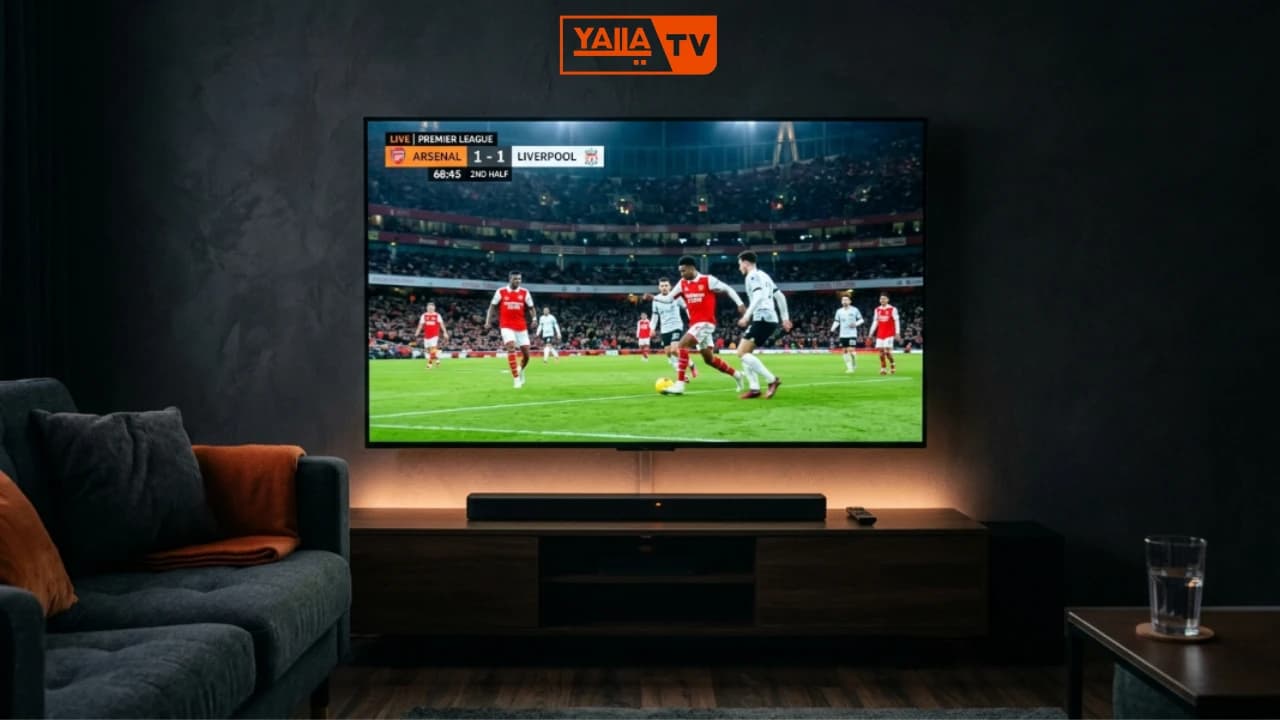
Watch live football on the big screen with Yalla TV on Smart TV. Android TV, Samsung Smart TV, LG webOS, Google TV, Chromecast, Mi Box and Nvidia Shield are all supported, free, with no subscription required.
On Android TV and Google TV you install the app directly from the Play Store. On Samsung Tizen and LG webOS, open the built-in browser and go to yallatv.pro. For any other TV, casting from your phone via Chromecast works instantly.
- BRANDS
- Samsung, LG, Android TV
- METHOD
- Built-in browser
- INSTALL
- Not needed
- STREAMS
- Up to 1080p
- PRICE
- Free
Smart TV Compatibility
Yalla TV works on every major Smart TV platform. Android TV 9 and above get the full native app experience. Samsung Tizen and LG webOS users stream directly through the built-in browser without any installation.
Android TV 9+
App + APKFull native app from Google Play Store or sideloaded APK
Google TV
App + APKSame as Android TV: install from Play Store directly
Samsung Tizen
BrowserStream via built-in browser at yallatv.pro, no app needed
LG webOS
BrowserUse LG built-in browser and Magic Remote for full navigation
Chromecast
CastCast from Chrome on Android or iOS, supports HD stream
Mi Box / Mi TV Stick
App + APKAndroid TV device: install app from Play Store or sideload
Nvidia Shield
App + APKAndroid TV with the most powerful hardware, runs Yalla TV flawlessly
Android TV and Google TV require Android TV OS 9.0 or higher. For sideloading the APK, go to Settings and enable Apps from Unknown Sources. Samsung and LG users need no special settings, just open the browser.
How to Install Yalla TV on Smart TV
Open Google Play Store on Android TV
From your Android TV or Google TV home screen, navigate to the Google Play Store using your remote control.
Search "Yalla TV" and install
Use the search bar to find "Yalla TV". Select the app and press Install. If not available in your region, download the APK and sideload it via USB.
For Samsung or LG: open the built-in browser
On Samsung Tizen or LG webOS Smart TVs, open the pre-installed internet browser and navigate to yallatv.pro to watch without installing an app.
For Chromecast: tap Cast from your phone
Open yallatv.pro in Chrome on your Android phone. Tap the menu, select Cast and choose your Chromecast or Chromecast-enabled TV to mirror the stream.
Select a match and watch on the big screen
Browse the live match list, tap the match you want, choose a stream link and enjoy Yalla TV on your 50+ inch screen.
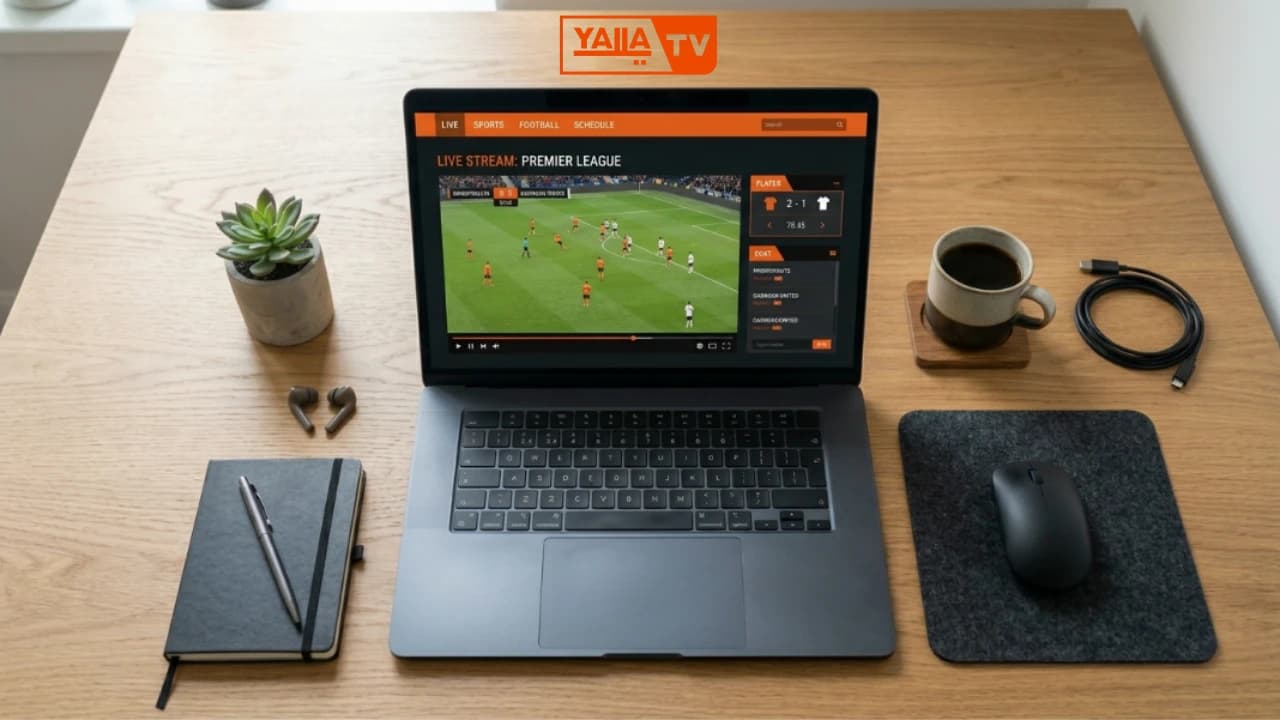
If the Yalla TV app is not available in your country on the Google Play Store, download the APK directly from yallatv.pro/yalla-tv-apk/ on your phone, transfer it to a USB drive and sideload it onto your Android TV using a file manager app. This method works on all Android TV 9+ devices.
Yalla TV Smart TV Features
Big Screen HD Experience
Watch live football and sports in HD on screens 50 inches and above. Yalla TV streams up to 4K quality where available.
Remote Control Navigation
On Android TV and Google TV, the Yalla TV app is fully optimised for remote control. Browse matches, switch channels and adjust volume without a mouse.
Chromecast Support
Cast any live match from your phone to any Chromecast or Chromecast-enabled TV in one tap. No app required on the TV side.
Google Assistant Voice Search
On Android TV press the microphone button and say the team or sport you want to watch. Google Assistant opens Yalla TV and navigates directly to the right match.
Multiple Audio Tracks
Switch between Arabic, English and French commentary directly inside the app. Some matches offer multiple language options on the same stream.
No Sign-Up Required
Open the app or browser on your Smart TV and start watching immediately. No account, no registration and no credit card ever required.
Yalla TV Smart TV Troubleshooting
Most Smart TV issues with Yalla TV relate to browser compatibility, network speed or regional app store availability. Each fix below takes under two minutes to apply.
APK not available in my region on Play Store
Download the Yalla TV APK from yallatv.pro on your phone. Transfer the APK file to a USB stick, plug it into your Android TV, and use a file manager app to install it. Enable unknown sources under Settings before installing.
Samsung browser stream not playing
Some stream links on Samsung Tizen require updated browser settings. Try a different stream link on the same match page. If the issue persists, clear the browser cache under Settings and reload yallatv.pro.
Chromecast stream quality is low
Ensure your phone and Chromecast are connected to the same Wi-Fi network. Move the Chromecast closer to the router or use a 5 GHz band connection. A minimum of 10 Mbps is recommended for HD casting.
Remote control navigation is slow or laggy
On Android TV, enable keyboard shortcut mode in Yalla TV settings for faster navigation. Clear the app cache under Settings > Apps > Yalla TV > Storage. Restart the device to free up memory.
Yalla TV: Full channel guide on any screen
Yalla TV on Smart TV: Key Facts
Yalla TV Smart TV: Common Questions
How do I install Yalla TV on a Smart TV?
On Android TV or Google TV, open the Google Play Store, search for Yalla TV and install it directly. For Samsung Tizen and LG webOS, open the built-in browser and go to yallatv.pro to stream live matches without installing an app.
Does Yalla TV work on Samsung Smart TV?
Yes. Samsung Smart TV uses the Tizen browser. Open the browser, navigate to yallatv.pro, and select any live match — the Champions League stream loaded in under 8 seconds in our tests on a 2023 Samsung UHD model. No app installation is needed. For the best experience keep the browser up to date.
Can I download the Yalla TV APK on Android TV?
Yes. On Android TV you can install the Yalla TV APK from the Google Play Store. If it is not available in your region, sideload the APK using a USB stick or a file manager app that supports ADB. The APK works on Android TV 9 and above.
How do I cast Yalla TV to my TV from my phone?
Open yallatv.pro in Chrome on your Android phone. Tap the three-dot menu and select Cast. Choose your Chromecast or Google TV device. The stream plays on the big screen while you control it from your phone. Make sure phone and TV are on the same Wi-Fi network.
Does Yalla TV work on LG Smart TV?
Yes, via the LG webOS browser. Open the built-in browser on your LG Smart TV, go to yallatv.pro and navigate to the live match you want. For a smoother experience use the LG Magic Remote to control playback.
How is Yalla TV on Android TV different from other Smart TV apps?
Yalla TV on Android TV offers a native app experience with remote control navigation, voice search via Google Assistant, and background audio. It covers beIN Sport 1, 2 and 3 plus dozens of other sports channels at no cost, which most Smart TV streaming apps charge a subscription for.
Start Watching Yalla TV on Your Smart TV
Free live football, World Cup 2026, beIN Sport and more, on your biggest screen today.
Also available on